


As an Admin, I want to define the main settings for my site so I can control it in every aspect.
Video prototype WIP
Acceptance Criteria
Access
Access Space Settings from:
Three dots menu on the homepage (side panel). User can start editing settings from the site panel or jump to the full section.
Three dots or in the space name left panel (as it is)
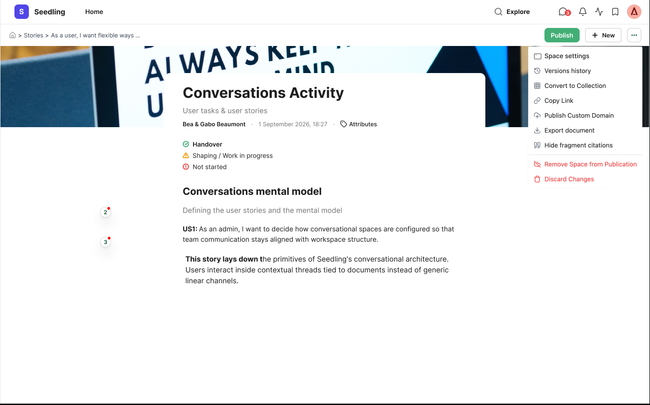
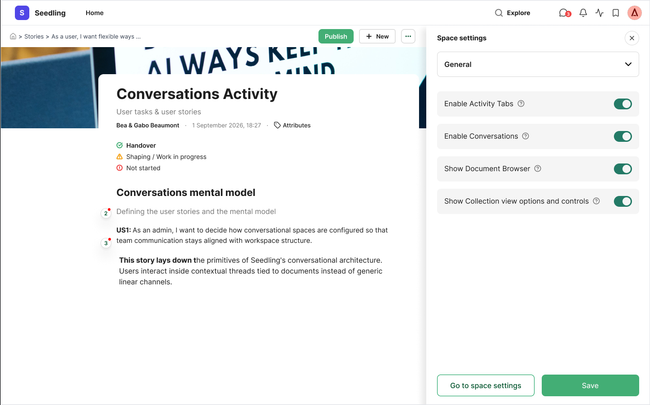
Generic tab
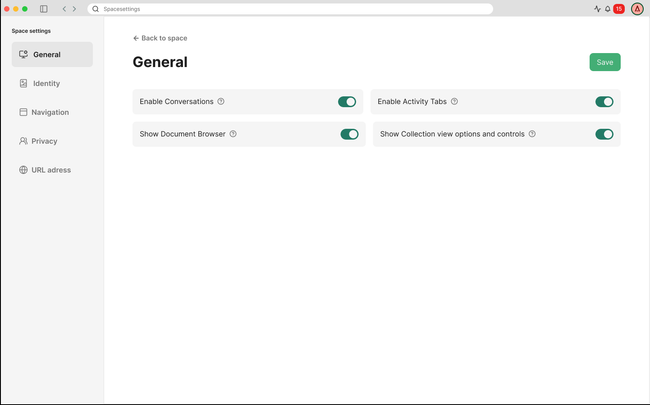
Add a first tab called general that should be used to define main space settings control:
Enable Conversations (if this is off the next one should be off too)
Enable Activity Tabs
Show Document Browser
Show Collection view options and controls
These controls go with a ? icon tool tip text for further explanation:
Enable Activity Tabs: Show Conversations and Members tabs, so users can follow comments, backlinks and see who belongs to the space.
Enable Conversations: Allow members start and join conversations on all documents.
Show Document Browser: Displays the document hierarchy in the left sidebar for easier navigation.
Show Collection View Options and Controls: Adds search, filter, sort, and view controls to help users find and organize subdocuments.
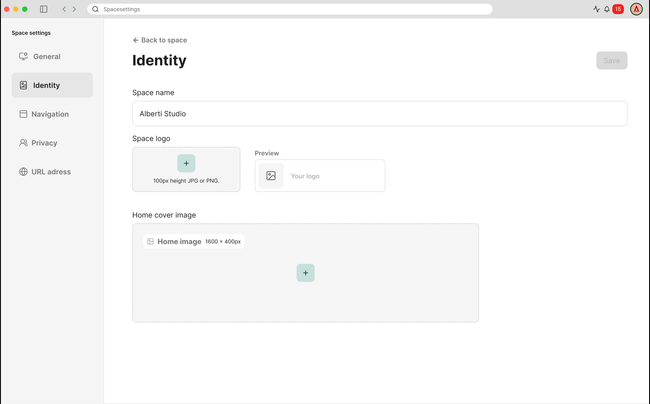
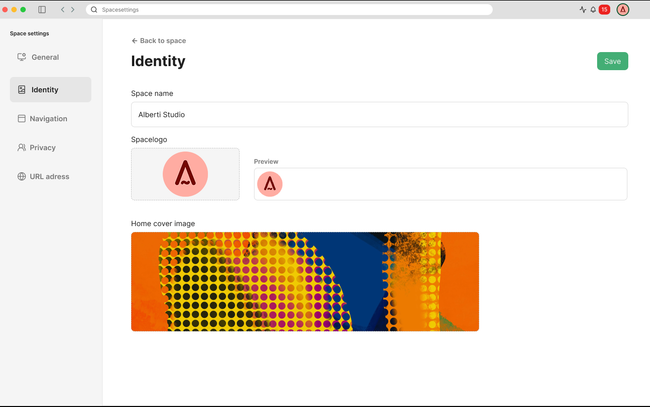
Identity tab
User can edit the site name via a text input field
User can upload a site logo (YIDps height, JPG or PNG) and see a live preview
User can upload a home cover image (1600 × 400px)
A "Save" button persists all changes
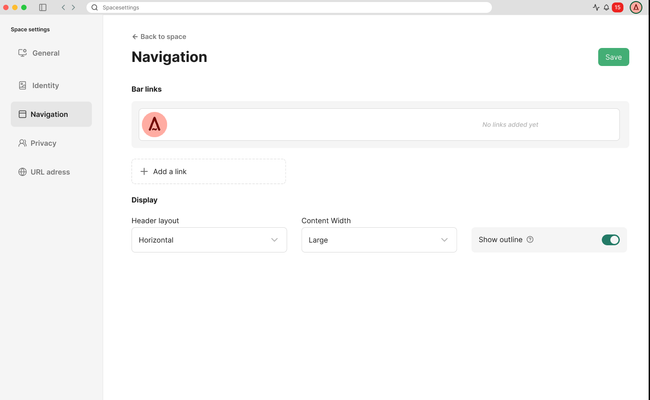
Navigation tab
User can add link items that appear in the top bar
Bar preview updates in real time as items are added/removed
Each link can be deleted (via x icon)
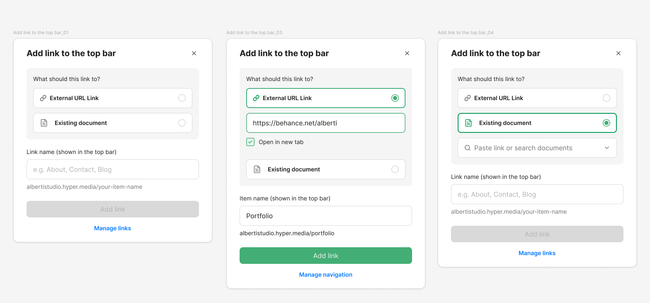
"+ Add a link" opens a modal with fields: Item name (shown in top bar) and Link name (auto-generates URL slug)
User can configure Header layout (Horizontal dropdown) and Content Width (Large dropdown)
User can define basic site appearance like mode and site font style
A "Save" button persists all changes
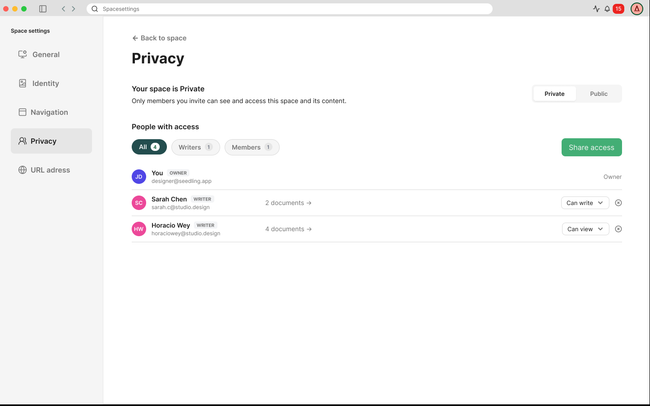
Privacy tab
This is design on the Permissions User story
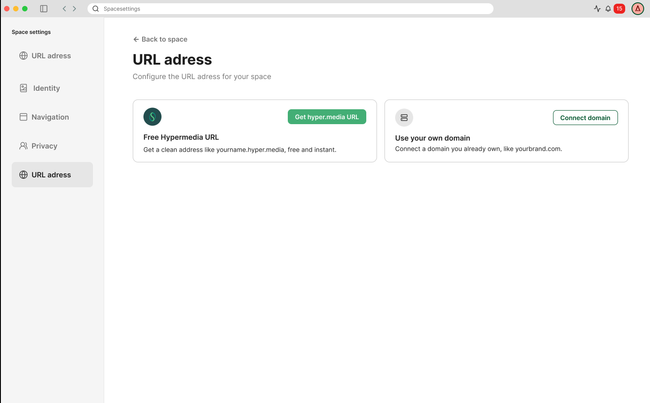
Address URL
This is design is on the domain User story Free domain My own domain
Edge cases
Logo upload exceeds file size or wrong format — Error toast; upload rejected giving indications
Cover image wrong dimensions — Image is cropped/scaled to 1600×400
Duplicate link name — Allow (names aren't unique identifiers), but warn if link slug collides
Link name contains special characters — Auto-sanitize to URL-safe slug
Max link items reached (6) — '+ Add link item' disabled with tooltip explaining limit (We don't allow weird behaviour of the navigation as we do now)
Unsaved changes + user navigates away (tab switch) — Prompt: 'You have unsaved changes. Discard?'
Network failure on Save — Retry-able error toast; form state preserved
Other observations
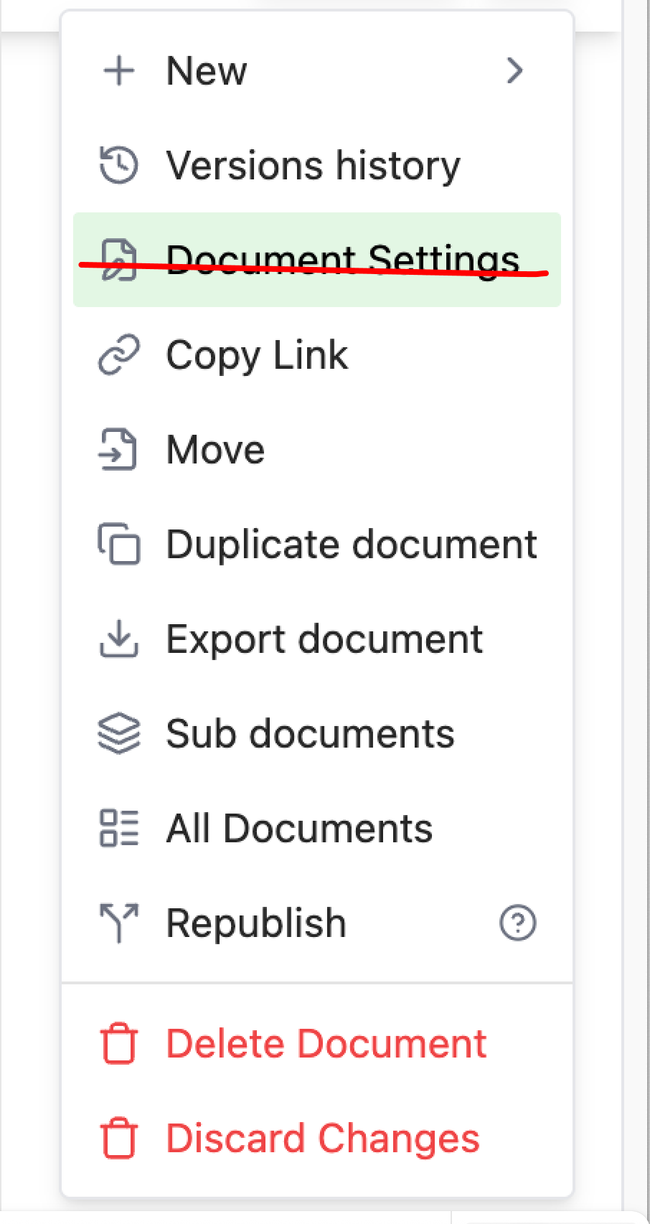
Delete document settings from each document, Admin controls these parameters from space settings.
Do you like what you are reading? Subscribe to receive updates.
Unsubscribe anytime